Welcome to the furum dedicated to helping you with tips about your android device

welcome to androiddoctor

Sunday, August 21, 2011

HOW TO INSTALL A CUSTOM ROM ON HUAWEI IDEOS U8150
ROM (Read Only Memory) in the context of android devices is the internal flash memory where the core operating system resides. It can also refer to a specific version of firmware that can be applied to a device through a process usually referred to as flashing. Custom ROMs seek to correct the weakness in the stock ROM in order to increase the general performance of your phone. (Stock ROM is ROM pre installed in the device)
Good custom ROMs redesign and make changes to stock ROMs by adding tweaks for better Ram memory management, increased battery life and best of all they offer cpu overclocking/underclocking. This means that you are able to increase cpu speeds for better and smoother performance or you can underclock the cpu to increase the battery life of your IDEOS. I have found Fusionideos to be one of the cleanest and most stable ROM available for the IDEOS but even other ROMs are definitely worth trying out.

So far I have tested three ROMs that are available for the IDEOS (they are in no particular order):-
1.      FUSIONideos v 2.7.6 (based on android 2.2 froyo)
download from here
2.      Gingerman v7 (based on android 2.3  gingerbread)
download from here
3.      Dronix v0.4 (based on android 2.2 froyo)
download from here
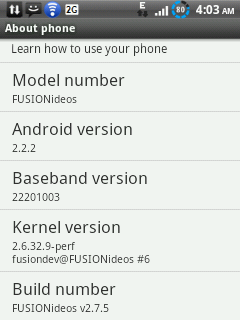
FUSIONideos 2.7.5 screenshot
The above ROMs are generally very stable

This is a step by step guide on how to install a Custom ROM on
Huawei Ideos u 8150

Rooting your IDEOS
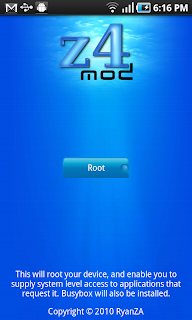
This is can be done using an app called Z 4 Root.
Download it from here
Navigate to where you have downloaded the app in you SD Card using a file manager.
Click on the app to Install. After the app has installed open it and click Permanent Root.
Make sure the device is rooted before proceeding to the next Step (check for an app known as superuser from the app drawer or open z4 root app from the app list to examine the options available)

Installing a Custom ROM (Requirements)
you need to download a windows application known as PdaNet to supply your computer with the necessary drivers for android. Install the application and follow the instructions. you can find PdaNet.exe at www.cnet.com/downloads

You will also require a custom recovery.
There are two custom recoveries for the ideos, namely
1.      1. Ultrajack recovery
FUSIONideos 2.7.5 home screen(go launcher ex)
2.      2. Clockworkmod recovery

Ultrajack recovery
 1.Download the zip from here

2. Extract the zip folder from the computer

3.  Enable usb debugging on your phone. To do this go to settings menu>applications >development> usb debugging and then enable.
4. Shut down your phone.
5. Turn on your phone into bootloader mode by pressing power button +  volum down key + end call key (the red key). You should press all the above keys at the same time.
      The phone will be stuck on the ideos screen.This is   normal
5.  Now plug in your phone in computer via the usb cable and  let windows install the drivers.
6.  Go to the folder where you extracted the ultrajack.zip to run the installer by double click -   install-recovery-windows.bat file.
7. After the script has flashed the recovery image, (should take 1-5 seconds). Unplug your phone and remove and re insert the battery to get out of bootloader mode if the phone does not restart automatically.

    NB confirm whether you have successfully fashed ultrajack recovery by shuting down your phone and  pressing volume up key + green  button + power button (press the all above keys at the same time) a screen should appear with a HUAWEI logo as the background and at the bottom it should show Ultrajack recovery. 

Gingerman v6.51 screenshot
Installing clockworkmd recovery
This is simpler compared to installation of Utrajack recovery. All you need to do is download Rom manager from the market. Install the app and flash clockworkmod and that’s all.

To confirm that you have successfully flashed clockworkmod into your IDEOS just open Rom Manager and chose the option to reboot in recovery or  shut down your phone and boot into recovery mode by pressing power button +  volume up key + green button. You should press all the above keys at the same time. A screen should appear with the logo shaped like a hat as the background and at the bottom should be written clockworkmod recovery.

Backing up your apps and data
You need to back up your apps and data since installing a custom ROM will completely wipe your phone. To back up just download and install an app known as Titanium backup or My backup pro both of which can found in the Market.
After you have backed up your device now you can proceed to the next step.

Installing a custom rom
You may use ultrajack recovery or clockworkmod recovery depending on the ROM you are installing.

Using ultrajack recovery
1.      Boot your phone in recovery. This is by pressing volume up key + green button + power button (press the all above keys at the same time)
A screen should appear on your IDEOS that has the HUAWEIi logo as a background.
2.      Use the D -Pad under the screen to move between options.

I suggest you check out all of the threads by the ROM developers before making a decision .
Some of these ROMs may differ when it comes to installation .
It is always recommended that you carefully read through the dev 's post and comments about their ROM.
3.      After you have downloaded the zip file from one of those threads, move the zip file onto your phone.
4.      Shut down your phone.
5.      Boot your phone in recovery mode using the method outlined above .When the Custom recovery has loaded , select Flash zip from sdcard .
6.      Select choose zip from sdcard.
7.      Select the zip file you moved onto your phone.
8.      Confirm choice.

Now your phone is being flashed with your ROM, it 's going to take a few minutes.
When it’s done, the phone may reboot automatically (depending on the ROM) or go back to the main menu using the down volume key so as to reboot your IDEOS manually from recovery Menu.
It should take a while to first start since it will be writing the cache files.
9.      Setup your phone

10.  If you backed up your apps using Titanium Backup/My backup pro after you have setup your phone install Titanium Backup/my backup pro again and restore your apps.

It is important to note that some ROMS require a specific custom recovery. To be sure you have to read through the Dev’s threads/post before flashing any custom rom.

Using Clockworkmod Recovery
After you have installed Rom manager and flashed clockworkmod, from the Rom manager app  select the option to install ROM from sd card. Your phone will reboot in clockworkmod recovery and installation of the ROM will begin.
Setup your phone after install is finished, the phone may reboot automatically(depending on the ROM) or go back to the main menu using the back soft key so as to reboot your ideos manually from recovery Menu.

It should take a while to first start since it will be writing the cache files.

If you backed up your apps using Titanium Backup/My backup pro after you have set
up your phone install Titanium Backup/My backup pro again and restore your apps.

It is important to note that some ROMS require a specific custom recovery. To be sure you have to read through the Dev’s threads/post before flashing any custom rom.

To install a custom ROM successfully without bricking your IDEOS (completely rendering your phone unusable) you need to follow the above instructions carefully. Good luck :)


Thursday, June 23, 2011

Rooting your android device

Android is Linux based. Linux has a “super user” account called root. Rooting or rooted means the user/owner has super user access on the phone. Rooting your phone is the gateway to unlock it to a whole new world of opportunities. This is mostly through use of root only applications from the market and other sites.
I used a rooting app known as z4root which i downloaded from here. It’s by far the easiest method for rooting your IDEOS and most of other android Smartphone models (.please Google for an appropriate method for your device just to be sure). After downloading the app just install and choose the option for permanent root. After rooting the device an application known as Superuser access is uploaded to the phones system. Now this is the tool that does all the magic. The superuser access allows instlallation and running of app that otherwise would not work without rooting your phone. Another great advantage of rooting your phone is that you get to install your own custom ROMs. ROM (Read Only Memory) in the context of android devices, is the internal flash memory where the core operating system resides. It can also refer to a specific version of firmware that can be applied to a device through a process usually referred to as flashing. Examples of custom ROMs available for the popular Huawei IDEOS are FUSIONideos v2.0 which I have already flashed into my IDEOS and there is GINGERMAN ROM v5.1.
With the FUSIONideosROM on my IDEOS,I am able to overclock the CPU upto 748 Mhz up from the original 548Mhz that is available in the stock ROM thus making the phone super fast and it no longer ‘hangs’ or ‘force close’ when running apps. In addition, the phone has MULTITOUCH capabilities which it originally did not posses in the stock ROM(ROM pre installed in the device).These are just but a few of the goodies that come with ccustom ROMs.
Flashing of custom ROMs is arguably the main reason why most people root their devices. (I will post a thread later with details on custom roms available for various phones and where you can download them.)
Another equally important reason why you should root your android device is that you can be able to create FULL backups of everything in your phone raging from apps, contacts, photos and music. With a full back up of everything in your device you need not to worry about losing important contacts or personal documents. You can either create your backup in your SD Card and later transfer it to your pc or create the backup online using your Gmail account. The best app for doing this in my opinion is MyBackup pro or Titanium backup. If you want to restore your stuff you just use the same application that you used to create the backup.
I know I mentioned this earlier but it’s too awesome that I have to emphasize that you are able to uninstall apps that come pre installed in your device in case you don’t like them. You need to make backups before uninstalling some system apps since uninstalling some of them may cause instability in the system.
If you may be wondering which are the rootonly apps (apps that require rooted phones) that you can install after rooting your device here is a list of some of them.
MyBack up pro: Used to create backups
SetCPU: This is used to set different speeds of the cpu of your device according to the way you want it to perform and you can lower cpu speeds to save battery juice(power)
Root explorer: This app allows you to see everything that lives in your phone and of course modify them.
Screen Capture: Allows you to take screenshots of your device. I used it to take the screen shots in this blog
ROM Manager: this allows you to download and manage cyanogenMod roms eg Gingerman ROM.
Obviously these are not the only rootonly apps. After rooting your phone you’ll discover a lot more.

When rooting there are a number of good and bad things about doing this. Some of the good things I have already mentioned above but in a nutshell here are the pro’s and con’s
Pro’s
  • Modify/delete system file
  • Super user permissions
  • Flash custom ROMS
  • Themes and a great number of applications
  • Create FULL backups
Con’s
  • Voids warranty 

Let me know whether you have already rooted your phone or flashed a custom ROM and what is your experience after doing so by leaving a comment.


Friday, June 17, 2011

The IDEOS U8150


IDEOS was announced in September 2010.When it arrived in Kenya, it classified itself as the Cheapest Android Phone in the world. Considering that it was running Android 2.2 Froyo, which never made it onto many other low-end Android phones, Ideos managed to steal some eyeballs earlier on.
Ideos runs on Android 2.2 Froyo, and comes with a 2.8″ capacitive touchscreen, 528MHz Qualcomm Processor with 256MB RAM, 3.2 megapixel camera, GPS, support for Wi-Fi, Bluetooth 2.0, microUSB 2.0 etc. It also has an external memory card slot with support for upto 32GB.
The packaging is attractive and the phone comes with a quick start guide, charger, USB cable, 3.5 mm earphones and a 1GB Micro SD card. Its made from lightweight plastic and feels really small and light when you hold it in hand. The back panel comes in various colors to suit your taste.
I always believed that the real android experience comes with a phone heavy on specs. Using Huawei Ideos has  proved that.
Everything that is good also has its downside and the ideos is no exception. The phone suffers from lack of processing speed and memory. The 528Mhz Qualcomm processor & 256MB RAM are just not enough.
However this low processor issue with the ideos can be resolved by customizing it through many ways but none beats the installation of  a custom ROM.(I will be posting a thread later about custom ROMS available for Huawei ideos on this blog.)
Unlike some other low end phones, Huawei Ideos comes with a lot of connectivity options. There’s Wi-Fi, 3G, HSDPA, Bluetooth 2.1 with A2DP support and GPS with A-GPS. EDGE and GPRS are also included, and work without any problems

Bottom Line

Coming at KSH. 8499, free airtime worth 1K and 600MB of data, Huawei Ideos is worth a consideration. But it is definitely not a phone for someone waiting to experience Android in its full glory.